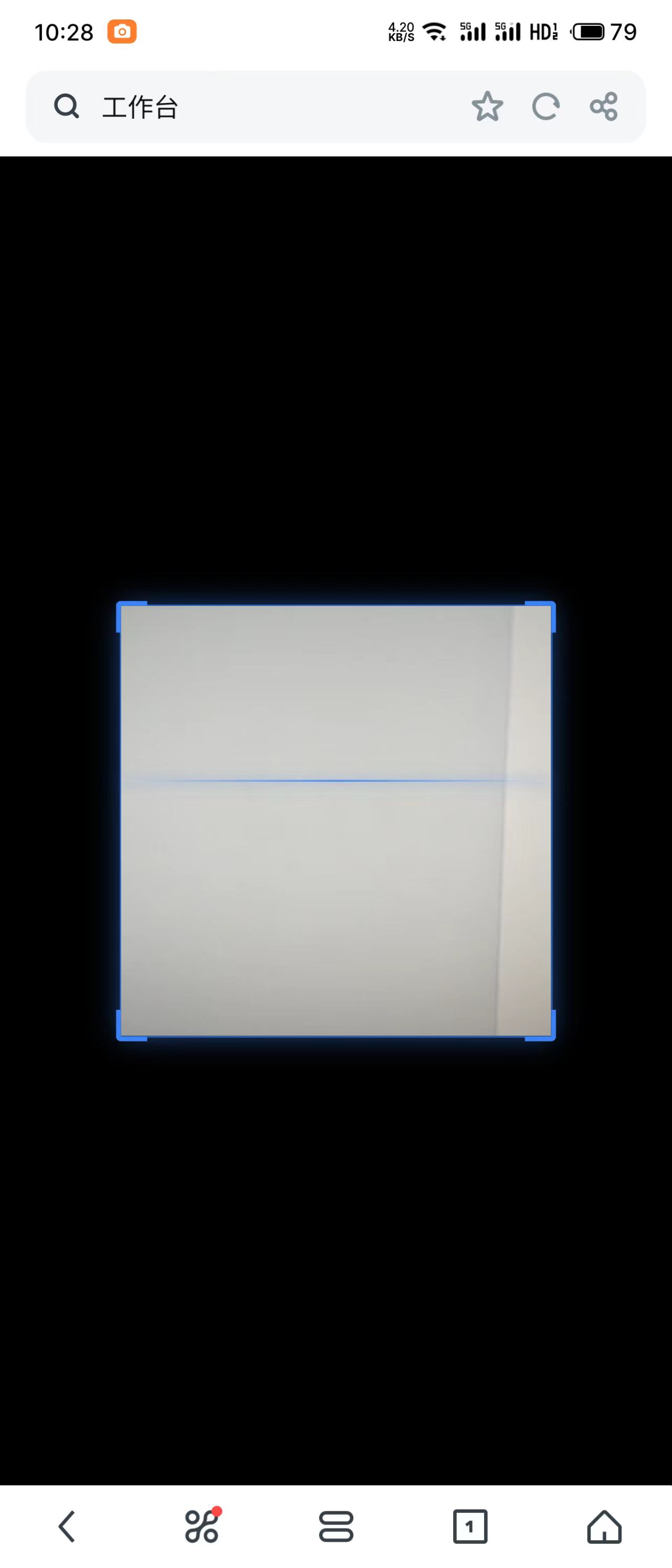
UNIAPP扫码二维码和识别上传图片的二维码
前言
要调研H5网页扫描二维码的功能,经过两天的努力,最终选择了 html5-qrcode 库。在使用这个之前,遇到了几个问题,在此分享一下:
- 手机拍摄的图片上传就会识别不到,发现是图片太大导致,所以图片上传时需要压缩图片大小。
- 如果二维码的图片是侧着拍,也大概率识别不出来。
- 调用手机摄像头扫码,需要在
https环境下或者本地调试环境localhost
扫码组件
安装库
npm install html5-qrcode
创建组件 lr-scan.vue
<template>
  <view class="lr-scan">
     <view class="lr-scan__box">
        <!-- 扫描框 -->
        <view class="scan-frame">
          <view id="qr-reader" class="qr-reader"></view>
          <view class="corner top-left"></view>
          <view class="corner top-right"></view>
          <view class="corner bottom-left"></view>
          <view class="corner bottom-right"></view>
          <view class="scan-line" :style="{ transform: `translateY(${scanLinePosition}px)` }"></view>
        </view>
        <!-- <button @click="startScan">开始扫描</button> -->
     </view>
  </view>
</template>
<script setup>
import { ref, onMounted, onUnmounted, nextTick } from 'vue';
import { Html5Qrcode, Html5QrcodeScanType } from 'html5-qrcode';

const html5QrCode = ref(null)
const isScanning = ref(false)
const scanResult = ref('')
const errorMessage = ref('')

onMounted(() => {
  html5QrCode.value = new Html5Qrcode('qr-reader')
  startScan()
})
onUnmounted(() => {
  isScanning.value = false
})

// 开始扫描
const startScan = async () => {
  startScanLineAnimation()
  try {
    errorMessage.value = '';

    const config = {
      fps: 10,
      qrbox: { width: 250, height: 250 },
      aspectRatio: 1,
      supportedScanTypes: [Html5QrcodeScanType.SCAN_TYPE_CAMERA]
    };

    await html5QrCode.value.start(
      { facingMode: "environment" },  // 优先使用后置摄像头
      config,
      onScanSuccess,
      onScanFailure
    );

    isScanning.value = true;
  } catch (err) {
    handleError(err);
  }
}
// 结束扫描
const stopScan = async () => {
  if (html5QrCode.value && isScanning.value) {
    try {
    await html5QrCode.value.stop();
    } catch (err) {
      handleError(err);
    } finally {
      isScanning.value = false;
    }
  }
}
const emit = defineEmits(['finish', 'quit'])
// 扫码成功
const onScanSuccess = async (decodedText, decodedResult) => {
  scanResult.value = decodedText;
  await stopScan()
  stopScanLineAnimation()
  emit('finish', decodedText)
}
// 扫码失败
const onScanFailure = (error) => {
  // uni.showToast({
  //   title: String('onScanFailure' + error)
  // })
  console.warn('扫码失败:', error);
}
// 处理报错
const handleError = async (error) => {
  errorMessage.value = getErrorMessage(error);
  if (errorMessage.value) {
    await stopScan()
    uni.showToast({
      title: errorMessage.value
    })
    emit('quit')
  }
}
// 获取错误信息
const getErrorMessage = (error) => {
  if (error.includes('NotAllowedError')) {
    return '请允许摄像头访问权限';
  } else if (error.includes('NotFoundError')) {
    return '未找到可用摄像头';
  } else {
    return '扫码功能出错: ' + error;
  }
}

// 配置参数
const scanLineSpeed = 1; // 扫描线移动速度
const scanLinePosition = ref(0);
const scanLineDirection = ref(1);
let scanLineInterval = null;

// 开始扫描线动画
const startScanLineAnimation = () => {
  scanLinePosition.value = 0;
  scanLineDirection.value = 1;

  scanLineInterval = setInterval(() => {
    // 更新扫描线位置
    scanLinePosition.value += scanLineSpeed * scanLineDirection.value;

    // 反转方向
    if (scanLinePosition.value >= 250 || scanLinePosition.value <= 0) {
      scanLineDirection.value *= -1;
    }
  }, 16); // 约60fps
};

// 停止扫描线动画
const stopScanLineAnimation = () => {
  if (scanLineInterval) {
    clearInterval(scanLineInterval);
    scanLineInterval = null;
    scanLinePosition.value = 0;
    scanLineDirection.value = 1;
  }
};
</script>
<style lang="scss" scoped>
.lr-scan {
  position: fixed;
  top: 0;
  left: 0;
  right: 0;
  bottom: 0;
  width: 100%;
  height: 100%;
  z-index: 9999; /* 确保在最上层 */
  background-color: #000;
}
/* 修改扫描框样式 */
#qr-reader {
  position: absolute !important;
  width: 250px !important;
  height: 250px !important;
}
.scan-frame {
  position: absolute;
  width: 250px;
  height: 250px;
  left: 50%;
  top: 50%;
  transform: translate(-50%, -50%); /* 自身宽高的一半 */
  z-index: 999;
  border: 2rpx solid rgba(59, 130, 246, 0.8);
  box-shadow: 0 0 30rpx rgba(59, 130, 246, 0.5);
}

.corner {
  position: absolute;
  width: 30rpx;
  height: 30rpx;
  border-width: 6rpx;
  border-color: #3b82f6;
}

.top-left {
  top: -6rpx;
  left: -6rpx;
  border-top-style: solid;
  border-left-style: solid;
  border-radius: 6rpx 0 0 0;
}

.top-right {
  top: -6rpx;
  right: -6rpx;
  border-top-style: solid;
  border-right-style: solid;
  border-radius: 0 6rpx 0 0;
}

.bottom-left {
  bottom: -6rpx;
  left: -6rpx;
  border-bottom-style: solid;
  border-left-style: solid;
  border-radius: 0 0 0 6rpx;
}

.bottom-right {
  bottom: -6rpx;
  right: -6rpx;
  border-bottom-style: solid;
  border-right-style: solid;
  border-radius: 0 0 6rpx 0;
}

.scan-line {
  position: absolute;
  width: 100%;
  height: 2rpx;
  background: linear-gradient(90deg, rgba(59, 130, 246, 0) 0%, rgba(59, 130, 246, 0.8) 50%, rgba(59, 130, 246, 0) 100%);
  box-shadow: 0 0 15rpx rgba(59, 130, 246, 0.8);
  transition: transform 0.016s linear;
}
</style>
使用组件
<template>
  <view class="home">
    <button @click="startScan">开始扫描</button>
    <view>{{ scanResult || '暂无扫描结果' }}</view>
    <view id="qr" class="qr"></view>
    <lr-scan v-if="showScaning" @finish="getScanResult" @quit="getScanResult"></lr-scan>
    <button @click="chooseImage">上传图片</button>
  </view>
</template>
<script setup>
import { ref, onMounted } from 'vue';
import { Html5Qrcode } from 'html5-qrcode';
const html5QrCode = ref(null)
onMounted(() => {
  html5QrCode.value = new Html5Qrcode('qr');
})

const showScaning = ref(false)
const scanResult = ref('')
const startScan = () => {
  showScaning.value = true
}

const getScanResult = (res) => {
  showScaning.value = false
  scanResult.value = res
}
const originalFile = ref(null)
const compressedBlob = ref(null)
const compressedFile = ref(null)
const chooseImage = async () => {
  const res = await uni.chooseImage({
    count: 1, //默认9
    sourceType: ['ablum', 'camera'], // 从相册选择图片
    sizeType: ['original'], // 使用原图
    quality: 100 // 适当压缩但保持清晰度
  });
  originalFile.value = res.tempFiles[0]
  // 压缩图片后得到的blob文件
  compressedBlob.value = await compressImage(originalFile.value, {
    quality: 0.75,
    maxWidth: 800,
    maxHeight: 800,
  })
  // 转换为 File 对象
  compressedFile.value = new File(
    [compressedBlob.value],          // Blob 数据数组
    originalFile.value.name || 'compressed-image.jpg',    // 文件名
    { type: compressedBlob.value.type } // 文件类型
  );
  compressedFile.value.path = URL.createObjectURL(compressedBlob.value)
  scanQRCode(compressedFile.value)
}
const sacnErr = ref('')
const scanQRCode = (file) => {
   // // 创建实例 (不需要挂载到DOM)
  html5QrCode.value.scanFile(file, false)
  .then(decodedText => {
    scanResult.value = decodedText
    uni.showToast({
      title: decodedText,
      icon: 'none'
    })
  }).catch(err => {
    console.log(err)
    sacnErr.value = err
    uni.showToast({
      title: String(err),
      icon: 'fail'
    })
  })
}

const compressImage = (file, options) => {
  return new Promise((resolve, reject) => {
    const reader = new FileReader();
    reader.onload = function(event) {
      const img = new Image();
      img.onload = function() {
        const canvas = document.createElement('canvas');
        let width = img.width;
        let height = img.height;

        // 按比例缩放
        if (width > height) {
          if (width > options.maxWidth) {
            height *= options.maxWidth / width;
            width = options.maxWidth;
          }
        } else {
          if (height > options.maxHeight) {
            width *= options.maxHeight / height;
            height = options.maxHeight;
          }
        }

        canvas.width = width;
        canvas.height = height;

        const ctx = canvas.getContext('2d');
        ctx.drawImage(img, 0, 0, width, height);

        // 转换为Blob对象
        canvas.toBlob(
          blob => resolve(blob), // 这里返回的是 Blob 对象
          file.type || 'image/jpeg',
          options.quality
        );
      };
      img.onerror = reject;
      img.src = event.target.result;
    };
    reader.onerror = reject;
    reader.readAsDataURL(file);
  });
};

</script>